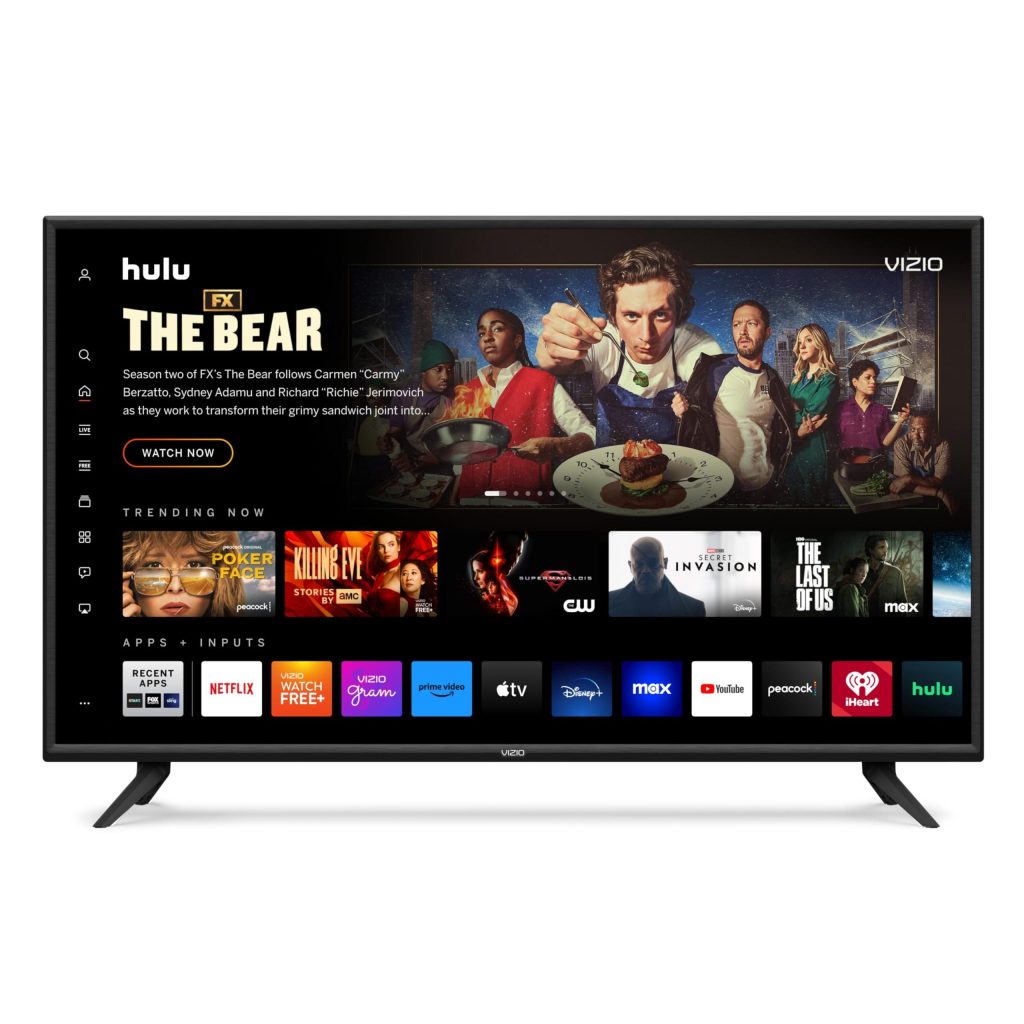

In today’s digital age, streaming services have revolutionized the way we consume media, offering unparalleled access to a vast array of content directly on our smart TVs. However, despite technological advancements, many users still grapple with poor streaming quality, which can significantly hinder the viewing experience. This article delves into the common causes of streaming issues and provides a systematic approach to resolving them. By examining network configurations, device settings, and service-specific adjustments, we aim to equip you with the tools necessary to enhance your streaming quality and ensure a seamless entertainment experience.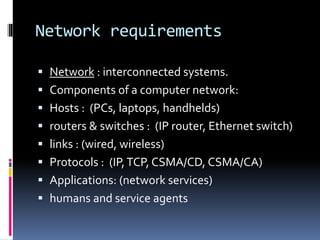
Understanding Network Requirements for Optimal Streaming
To enjoy seamless streaming on your smart TV, it’s crucial to ensure your network is optimized for this demanding task. Bandwidth is the backbone of any streaming service, and having insufficient bandwidth can lead to buffering and poor picture quality. For HD streaming, a minimum of 5 Mbps is recommended, while 4K content may require at least 25 Mbps. Network stability is equally important; frequent drops in connection can interrupt your viewing experience.
- Router Placement: Position your router centrally in your home to maximize coverage and minimize interference.
- Wired Connection: Whenever possible, use an Ethernet cable for a direct connection to your TV, as this often provides a more stable and faster connection than Wi-Fi.
- Network Congestion: Be mindful of other devices using the network simultaneously. High traffic can slow down your streaming speed.
Employing these strategies can significantly enhance your streaming quality, transforming your viewing experience from frustrating to enjoyable.
Assessing and Adjusting Your Smart TV Settings
Begin by delving into your smart TV’s settings menu to ensure optimal streaming quality. Start with the picture settings. Adjust the resolution to match your TV’s capabilities—most modern smart TVs support 1080p or 4K. Check the motion smoothing or motion interpolation settings, which can sometimes cause an unnatural look during fast-paced scenes. Disabling these features might enhance your viewing experience.
Explore the audio settings to ensure the sound complements the visual quality. Check for any audio delay settings that might be causing synchronization issues. Moving to the network settings, confirm your TV is connected to the correct Wi-Fi band. If possible, connect to the 5GHz band for a more stable connection. Additionally, consider these tips:
- Update Firmware: Ensure your TV’s firmware is up-to-date for the latest performance improvements.
- Disable Unnecessary Apps: Close background apps that might be consuming bandwidth.
- Adjust Bandwidth Usage: If multiple devices are connected, prioritize your smart TV for streaming.
Evaluating and Enhancing Your Internet Connection
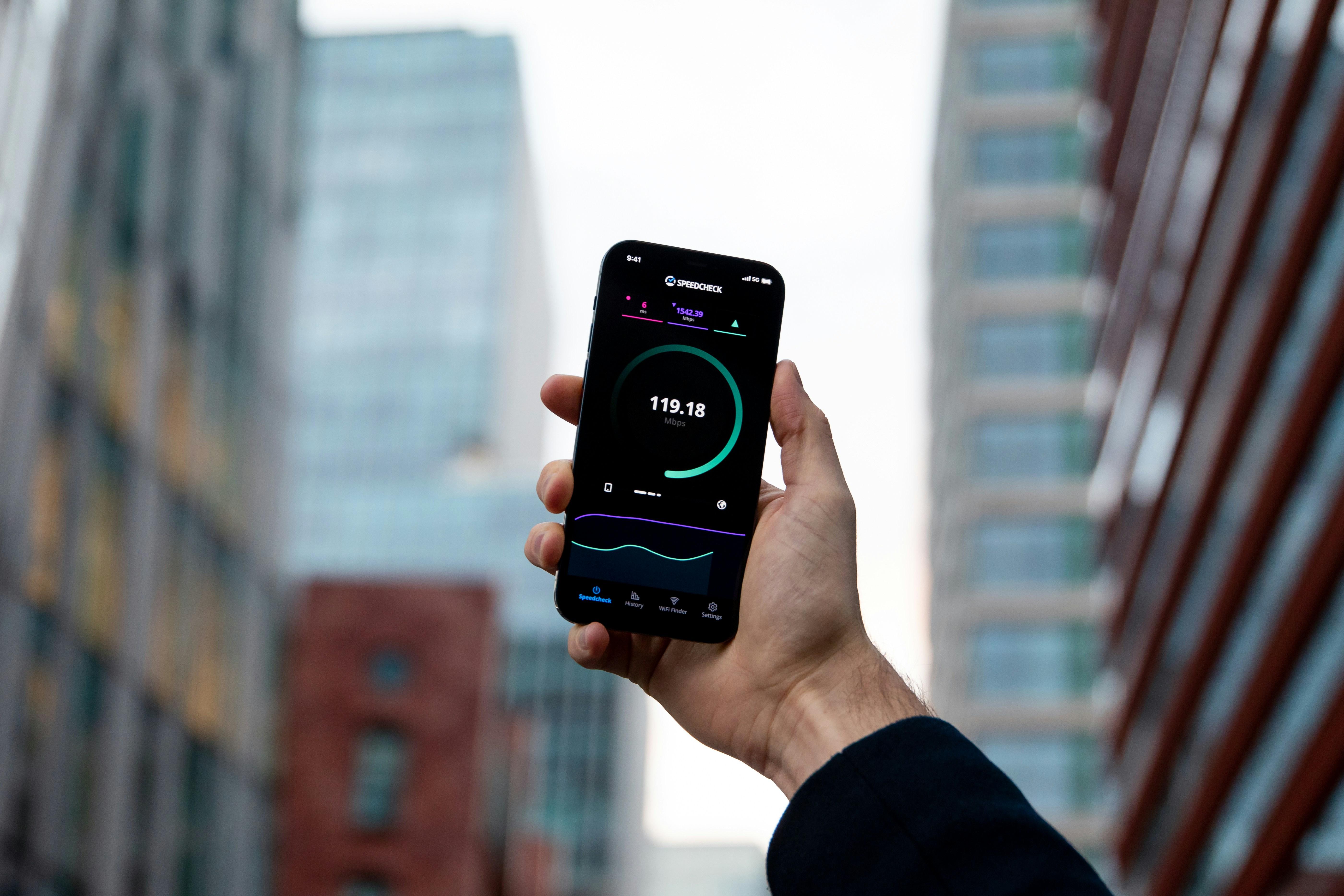
Start by conducting a speed test to determine your current internet speed. This will help you identify if your connection is capable of supporting high-quality streaming. If the speed is lower than your internet plan promises, consider the following:
- Router Placement: Ensure your router is centrally located in your home to maximize coverage. Avoid placing it near metal objects or other electronics that could interfere with the signal.
- Network Congestion: Disconnect devices that aren’t in use. Too many connected devices can hog bandwidth, reducing streaming quality.
- Wired Connection: For a more stable connection, connect your Smart TV directly to the router using an Ethernet cable.
After addressing these factors, reassess your connection. If issues persist, you might want to upgrade your internet plan or consider a mesh network to improve coverage throughout your home.
Exploring Advanced Solutions and Streaming Alternatives
When basic fixes fall short, it’s time to delve into more sophisticated solutions. Start by ensuring your router is optimized for streaming. Dual-band routers offer better performance, so consider upgrading if you’re using an older model. Also, explore Quality of Service (QoS) settings on your router to prioritize streaming traffic, which can significantly enhance video playback.
For those willing to explore alternatives, consider streaming devices like Roku, Amazon Fire Stick, or Chromecast. These devices often have superior hardware and software capabilities compared to standard smart TVs, offering smoother streaming experiences. Additionally, some users find success with Ethernet connections instead of relying on Wi-Fi, which can provide a more stable and faster internet connection. look into VPN services to bypass throttling by your ISP, potentially improving your streaming quality.